How to Spot Phishing Emails and Fake Domains: A Checklist with Real Examples Meta Description:
How to spot phishing emails and fake domains: a checklist with real examples
An email from your bank, a package that supposedly couldn't be delivered, a warning that your account will be locked: Phishing emails are unfortunately nothing new these days. No wonder, since online banking and shopping mean we store personal information, login details, and payment information just about everywhere. And that's exactly what criminals are after in phishing attacks.
What is phishing?
Phishing is a form of cybercrime where attackers pretend to be someone trustworthy and send fake messages. The aim is to get hold of payment information, login credentials, or other personal information.
The most common form is email: messages that appear to come from a trustworthy source. These often contain links to fraudulent websites designed to collect sensitive data from victims. Smishing works the same way, but over SMS and text messages. Spear phishing, on the other hand, targets specific individuals or companies. It typically arrives as a business email that appears to come from a colleague or manager.
For country-specific guidance, check your national cybersecurity agency. Examples are CISA or the Federal Trade Commission in the US, NCSC in the UK, or BSI in Germany.
The term “phishing” itself combines the words “fishing” and “password.” It's a fitting description, since attackers cast their bait out to as many people as possible and wait for someone to bite.
How to Spot a Phishing Email
These fraudulent messages are annoying and can have serious consequences for the people affected. That’s why it’s important to know what to look for in suspicious emails.
The following checklist covers the typical signs of phishing scams.
- Context: Think about whether you're expecting this email and whether the content fits your situation. Do you have a connection to the supposed sender? An email from a service you don't even use is a clear sign of a phishing attempt.
- Sender address: First, check the email address the message came from. Is this the address you'd expect from this sender? Attackers often add extras like “service” or “info” to make the fake look more convincing.
- Greeting: Does the email address you by name, or just generically with “Dear customer”? A missing personal greeting can be a warning sign.
- Request or threat: Does the message contain a clear call to action, like logging into a portal or making a payment? Attackers often threaten consequences if you don't comply.
- Links: Phishing emails usually contain a link to a fake login page or website. Hover over the link without clicking to see the actual destination URL.
- Grammar, spelling, and design: Phishing emails aren't always well made. Check the message for mistakes and whether the design matches the sender's other emails. It's also worth checking the footer: legitimate companies usually include their legal information, a privacy policy link, and correct contact details there.
- Unexpected attachments: Does the email contain attachments you weren't expecting? Never open these without checking first, since they can install malware on your device.
How to spot phishing through fake domains
Every phishing attempt relies on a domain. Attackers need it for the email’s sender address. They also need it for the fake website where they ask victims to enter confidential data. Attackers use several methods to make these domains look as similar as possible to the original:
With typosquatting, attackers register domains with slight typos, so the differences are only noticeable if you look closely.
It gets especially tricky when attackers replace letters with visually identical characters from other writing systems. A Cyrillic “а” (Unicode character U+0430) and a Latin “a” (Unicode character U+0061) look almost identical. The human eye can barely tell the difference, but technically, it's an entirely different domain.
With the subdomain trick, the real brand name is placed in front as a subdomain: inwx.de-support.com looks legitimate but actually belongs to the domain de-support.com. It's always worth taking a close look at the actual domain, the part before the domain extension.
If you want to spot a phishing campaign, it's worth taking a close look at the domain, too. When in doubt, don't access the domain through the possible malicious link in the email. Instead, type it into the address bar manually or find it through a search engine. That way, you're to land on the real site instead of following a redirect.
HTTPS alone is no longer a safeguard
The padlock icon in the browser bar used to mean security, but it is no longer a reliable sign. An SSL certificate confirms an encrypted connection and, in some cases, the domain owner's identity. But the most basic certificate level only requires proof of access to the website, not of the identity behind it. That's why phishing sites have long been using SSL certificates too.
How can I check whether a domain is genuine?
To check whether a domain is genuine and belongs to the company in question, it's worth doing a Whois lookup. Enter the domain in question, and you'll get information about the domain owner. If the domain does belong to a legitimate company, this is usually visible there.
However, anyone, including fraudulent senders, can protect their domain data with Whois privacy, so third parties can't see who registered the domain. A Whois lookup is therefore a helpful clue, but not proof on its own. You can find out more about what Whois is and what domain data it contains on our blog.
To make sure the contact details behind a domain are accurate and to make it easier to hold fraudsters accountable, the EU has passed the NIS2 directive. Under this directive, domain registrars and registries are required to collect and maintain accurate, complete domain contact data. You can read more about this in our article on the NIS2 directive: what domain owners need to know.
Another clue can be the domain's registration date, which is also visible in the Whois data. Is the domain only a few days or weeks old, even though the company has supposedly been around for years? That’s a clear warning sign.
Phishing email examples: what fake emails and domains look like
Looking at real phishing examples is the best way to show you exactly what to watch out for. The examples below break down the typical warning signs found in fake emails and fake domains.
Example 1: Sample phishing email with INWX design
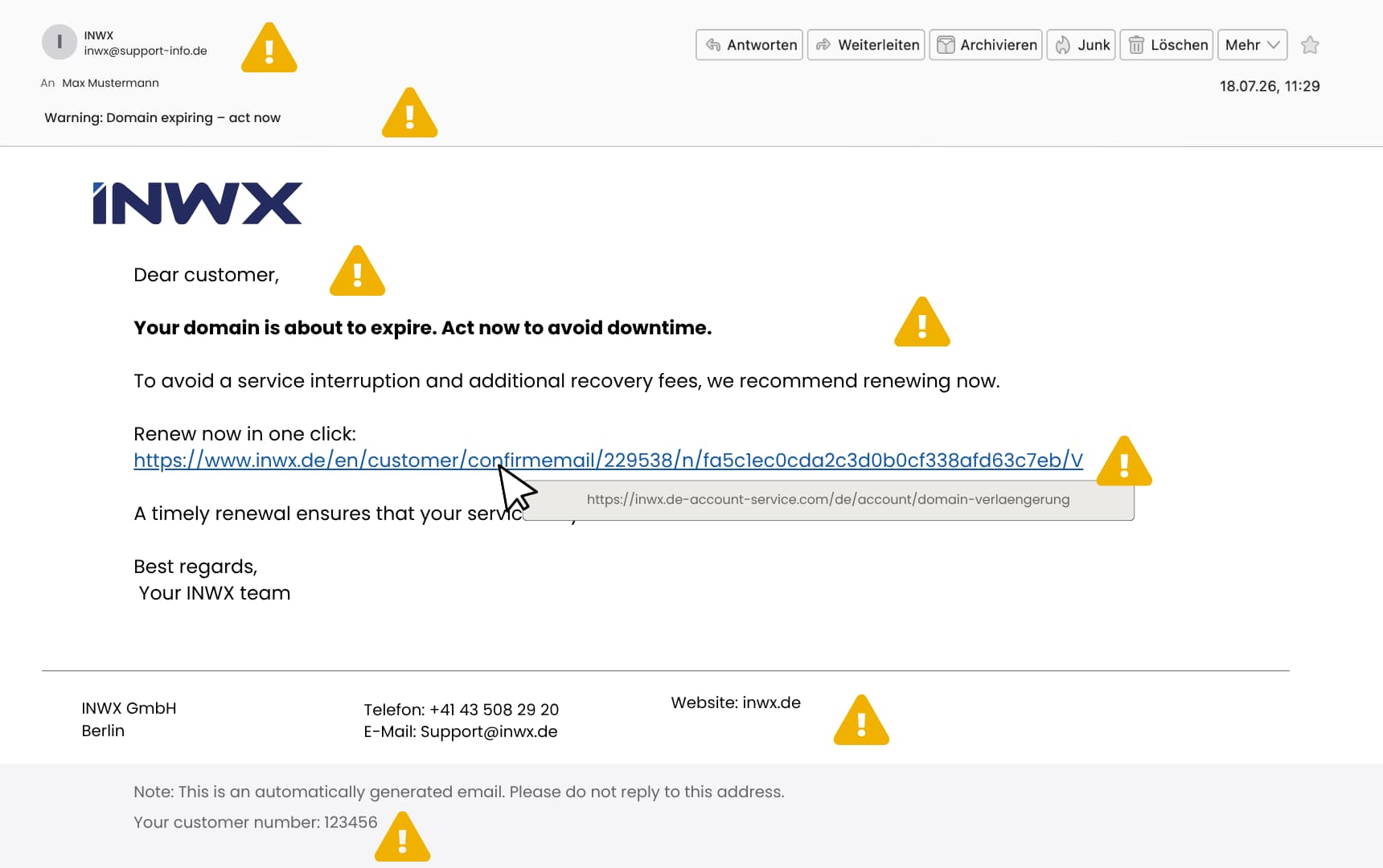
The sender address already gives away the scam: it doesn't match the official INWX domain, and neither does the URL behind the link in the message. Hovering over that link reveals the real destination: inwx.de-account-service.com. It is a fake domain with nothing to do with the official INWX website.
The subject line and the email body both use a strong call to action. They pair it with a specific consequence to create pressure. Combined with the generic greeting “Dear customer” instead of a name, these are classic warning signs, too.
The footer looks convincing at first but lacks required legal information like a proper legal notice and privacy policy link. The listed phone number uses a Swiss country code, despite the email claiming to come from INWX GmbH in Berlin. The customer number given (“123456”) is a generic placeholder rather than an actual account-specific number.
Example 2: Sample fake website with INWX design
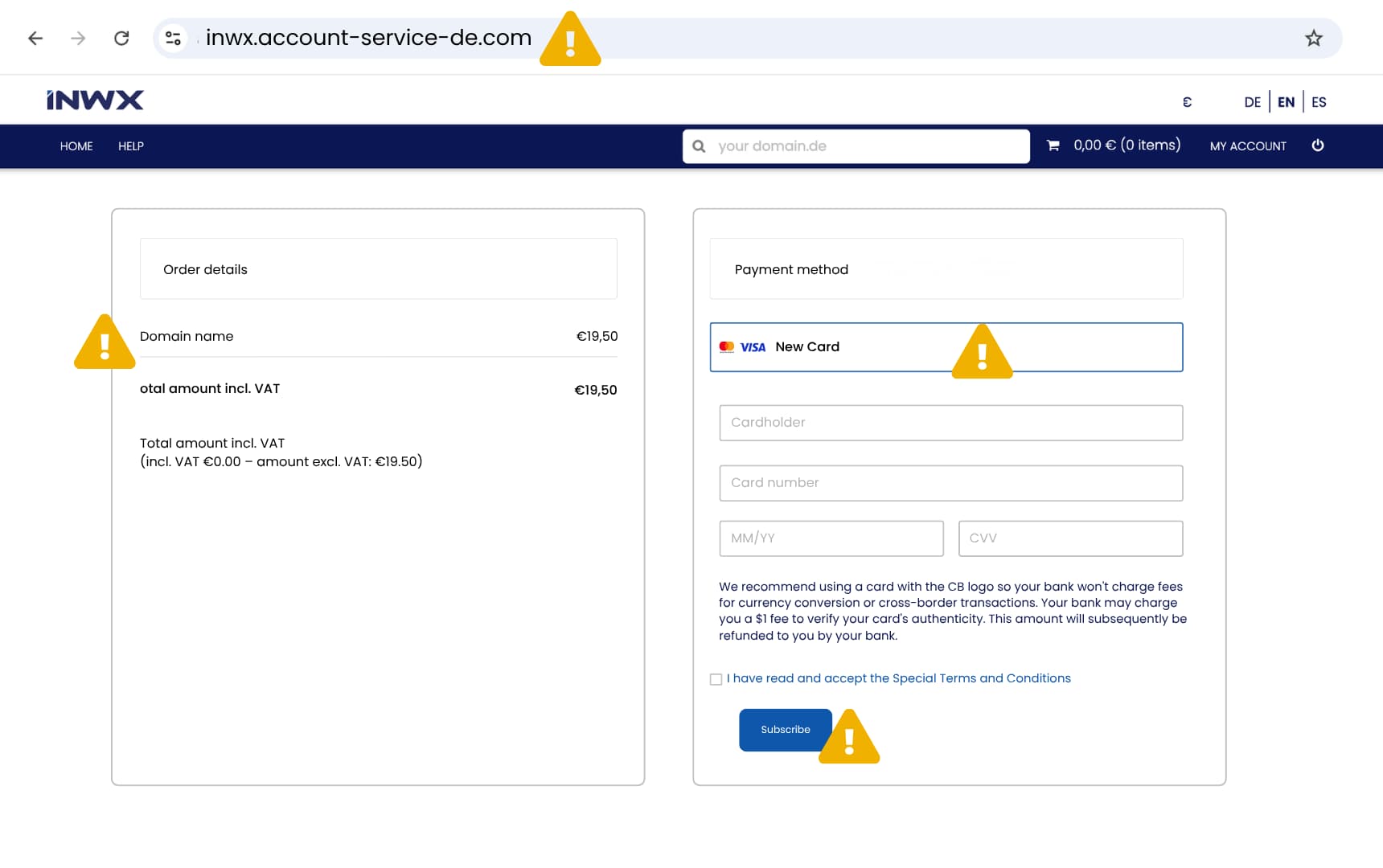
At first glance, this page looks just like an official INWX website. But a closer look reveals several suspicious details. The domain in the address bar doesn't match the real INWX domain. The page also asks you to enter payment details before you’ve logged in, and no legitimate company would do that.
It's also noticeably vague: instead of naming a specific product, like the domain being renewed, it lists “Domain name” as a generic line item. The checkout button is also labeled “Subscribe,” which doesn't match the context.
Example 3: Spear phishing from CEO
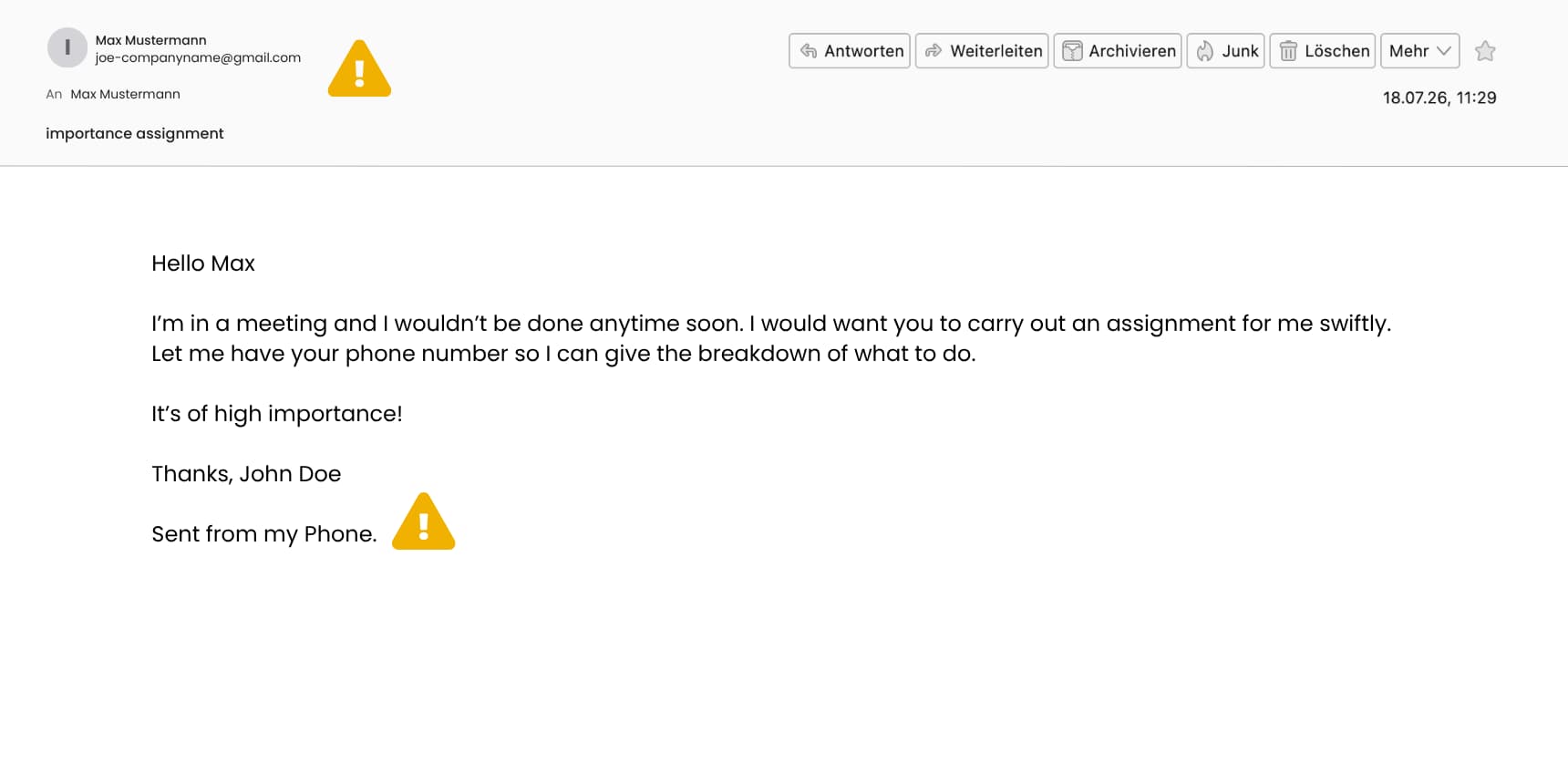
This message impersonates a manager or executive to pressure an employee into acting quickly, without asking questions. Once the target replies with their phone number, the attacker typically continues over text or a messaging app.
Start by checking the sender address. It often differs from the manager's real email or uses a free provider instead of the company domain. The request is vague, urgent, and comes with an excuse for being unavailable. Attackers use all of this to keep you from verifying it through normal channels. The sign-off “Sent from my Phone” explains away typos or an unusually short, informal message.
Example 4: Typosquatting domains
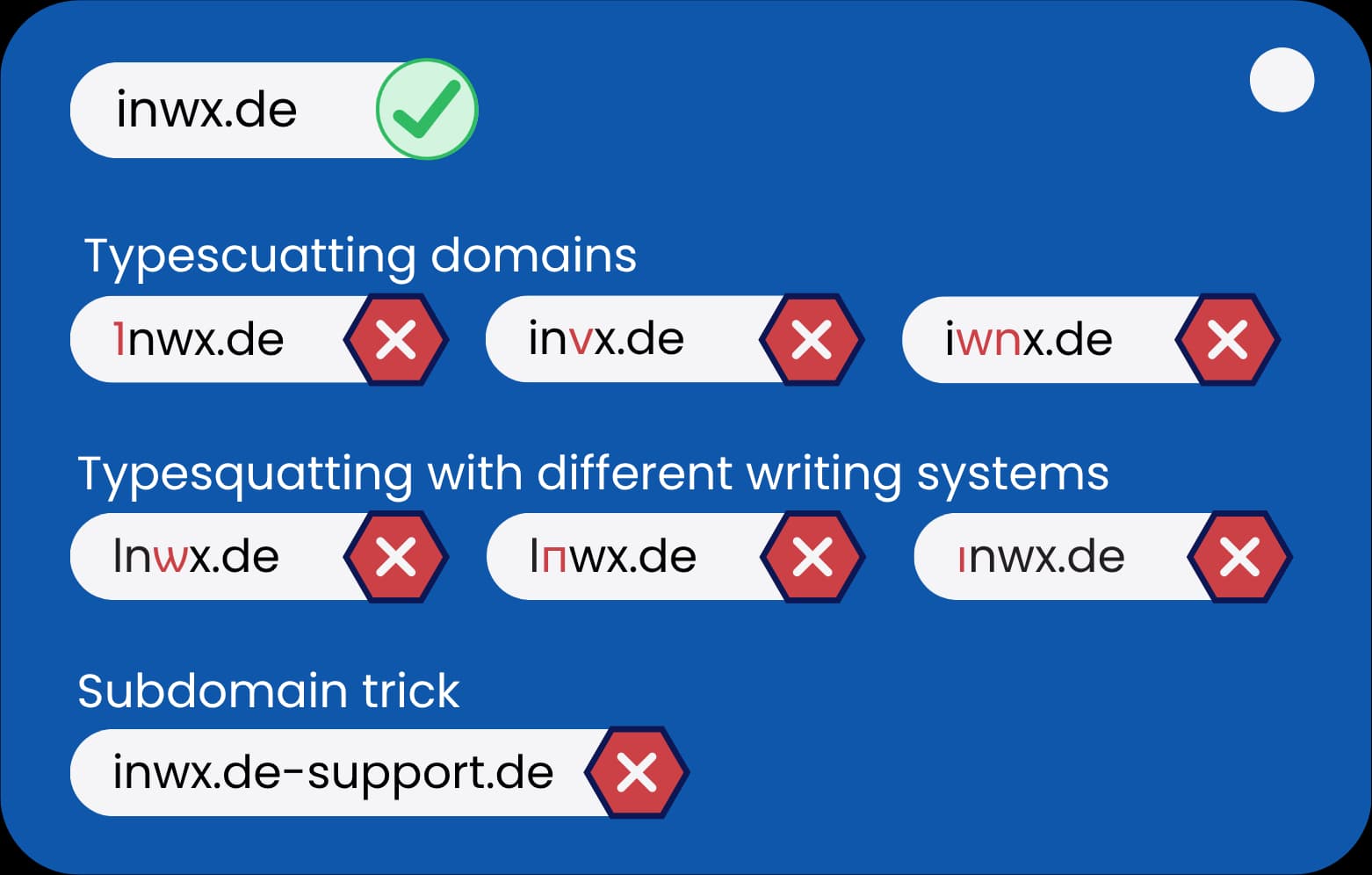
Small typos are enough to create a convincing fake domain: 1nwx.de replaces the “i” with the number “1,” vnwx.de swaps the “w” for a “v,” and inxw.de switches the order of two letters. All three are easy to miss at a glance, especially if you read quickly in an email or browser tab.
These fakes go a step further. They use letters from other alphabets that look nearly identical to the Latin ones: lnѡx.de replaces the “w” with a Cyrillic “ѡ,” lпwx.de swaps the “n” for a Cyrillic “п,” and іnwx.de uses a Cyrillic “і” instead of a Latin “i.” Visually, these are almost impossible to tell apart from the real domain. But technically, they're entirely different addresses.
inwx.de-support.de looks like it belongs to INWX at first glance, but the real domain here is “de-support.de”—“inwx” is just a subdomain. Always check the part directly before the domain extension to see who a domain belongs to.
What to do if you clicked a phishing link
Just opening a phishing email usually isn't dangerous on its own. It's only if you've clicked a link or entered personal data that you need to take action: change your password, inform the affected provider, and contact your bank if payment details were involved.
- Stop clicking: Don't click on any further links or open any possible malicious attachments in the message. Close the email.
- Change your passwords: If you entered login credentials, change the affected password immediately. Do the same for any other accounts where you use that same password. Log out of all active sessions in your account settings so unauthorized users lose access. Check your account for suspicious activity, and enable two-factor authentication if possible.
- Inform the provider: Contact the actual portal or provider whose name was used in the email. They can check your account and lock it if necessary.
- Contact your bank: If payment or banking details were involved, contact your bank right away so they can stop any suspicious transactions. You can usually block your card directly through your banking app.
- Check other accounts: This is especially important if attackers compromised your email account. They often use it to reset passwords for other accounts too. Check where else you use that address.
- Scan your device: Check your device with up-to-date antivirus software for malware.
- Report the phishing email: Forward the message to warn others—for example, to your national anti-phishing or consumer protection agency, or to your email provider's abuse team. If you suffered financial damage from phishing fraud, you can also file a police report.
If you opened the email on your smartphone, the same steps apply. Also check the permissions of recently installed apps and remove anything you can't clearly account for.
How to protect yourself: 2FA and more
The best protection against phishing is basic skepticism: Question every message critically and stay alert about where you enter your data. Banks, government agencies, online shops, and INWX will never ask for payment details by email or through a link. Only enter or change sensitive information like this after you’ve logged into your customer account.
You should also use strong, unique passwords for every service. A password manager can help you keep track. Keep your operating system, browser, and apps up to date as well, since updates often close known security gaps.
Wherever possible, you should enable two-factor authentication (2FA). It adds a second layer of protection to your password, such as a code sent to a separate device. That way, your password alone is no longer enough to access your account. You can find out how to set up 2FA with INWX in our guide: step-by-step: activate 2FA with INWX.